

AE-Celtra Help Desk
Native After Effects Tool for Converting Keyframe Data to Celtra
At Vidsy, motion design for Unilever brands is built in After Effects, then rebuilt in Celtra, the platform Unilever uses to scale video and static ads quickly. Celtra’s content tab lets non-designers, like marketers, swap text, images, and video without touching the animation, so I rebuild each project there with key assets made modular for easy iteration.
My manager tasked me with learning and mastering Celtra, then conducting a full audit of the program to teach the rest of the motion design team.
During that process, I found that converting animation values between After Effects and Celtra was consistently unreliable and time-consuming, since the two programs describe the same properties in completely different formats with no built-in way to translate between them. To solve this, I built a small custom panel inside After Effects that reads a keyframe’s real data and converts it into the exact values Celtra needs.
The result is a process that used to rely on visual approximation and manual math, now reduced to a single click producing an exact, correct value every time, making the After Effects-to-Celtra handoff faster and far easier for the rest of the design team.
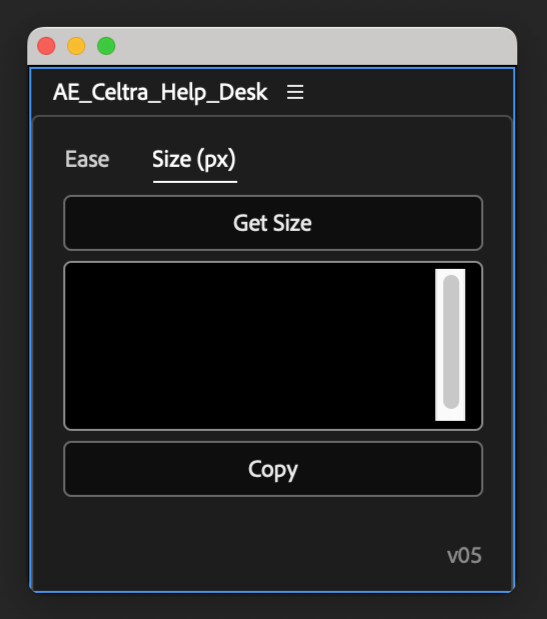
Features
Get Ease: After Effects has no interface that displays a keyframe’s ease as usable numbers, showing only speed and influence, while Celtra requires ease as an exact four-number cubic-bezier value. Matching a curve between the two by eye was effectively guesswork. The Ease tab reads a selected keyframe’s ease data and converts it into the precise cubic-bezier value Celtra expects, with a one-click copy button. This is especially necessary for matching 3D camera movement, which requires precise animation to look real.
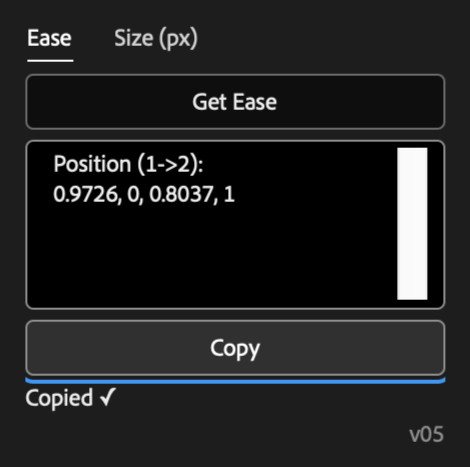
Users can click on the first keyframe of a pair and get the ease value
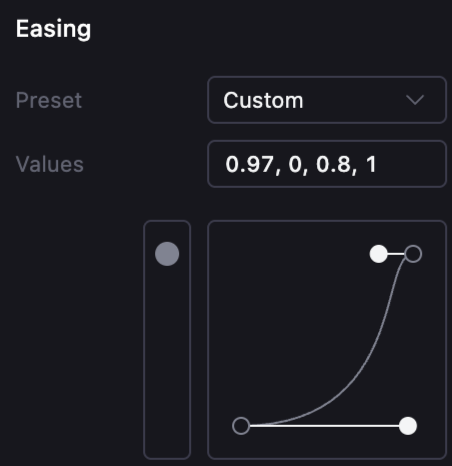
Users can then copy the value into Celtra’s easing tab
Get Size: After Effects scales elements as a percentage of the original source file’s dimensions, while Celtra sizes everything in absolute pixels, and finding an element’s true rendered pixel size in After Effects means manually doing the math. The Size (px) tab reads a layer’s Scale keyframe and multiplies it against the source asset’s real dimensions, producing the exact pixel width and height Celtra needs, also copyable in a single click.
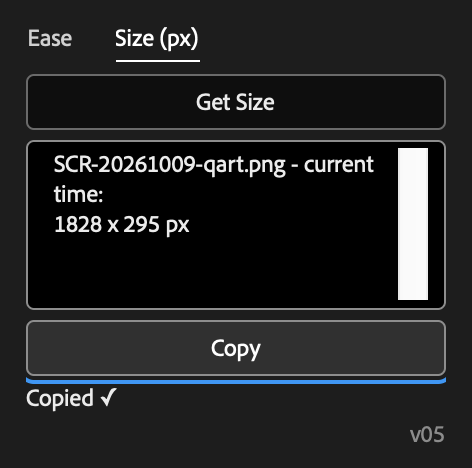
Users can click on a layer anywhere in time (or on a specific keyframe) and get the size in pixels
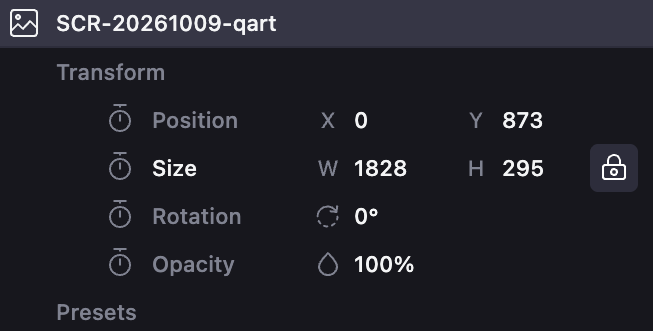
Users can then copy the size value into Celtra’s layer properties